Resizing Widgets
You can easily resize widgets on the dashboard by following these steps:
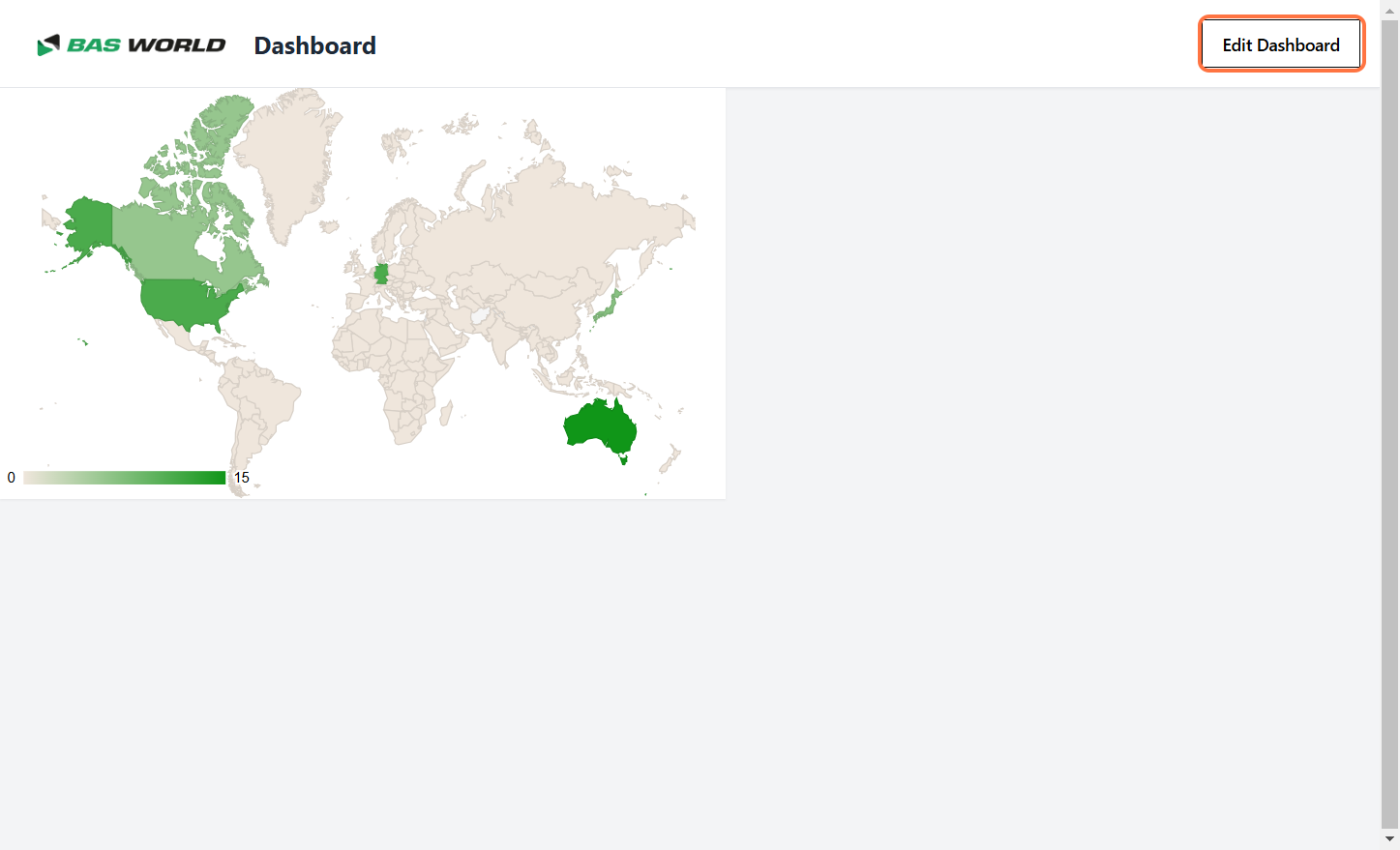
Step 1: Enable Edit Mode
Click the "Edit Dashboard" button to enter edit mode.
This allows you to resize your widgets.
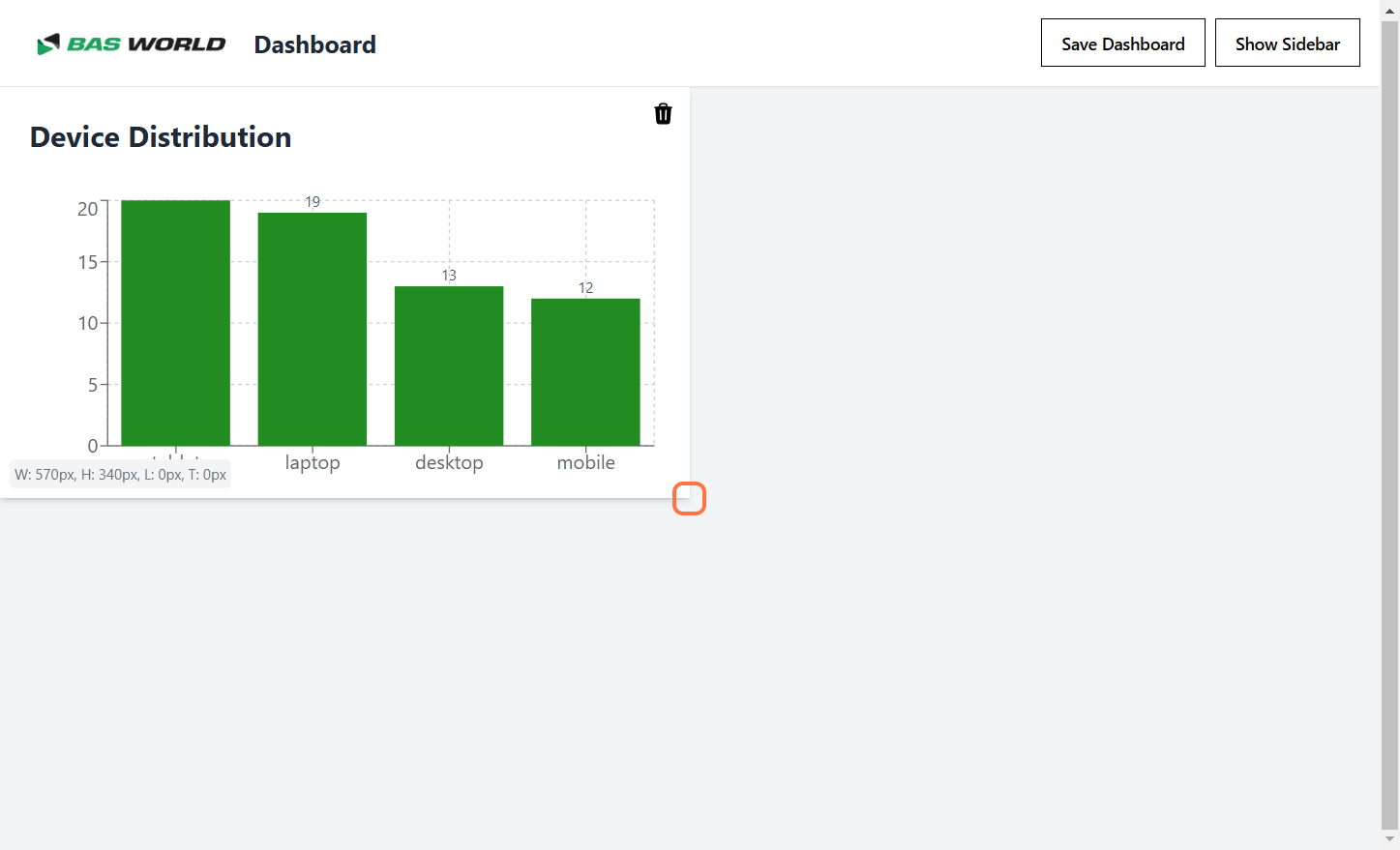
Step 2: Adjust Widget Size
Hover over the widget you want to resize, and drag on of the corners or sides to adjust its dimensions.
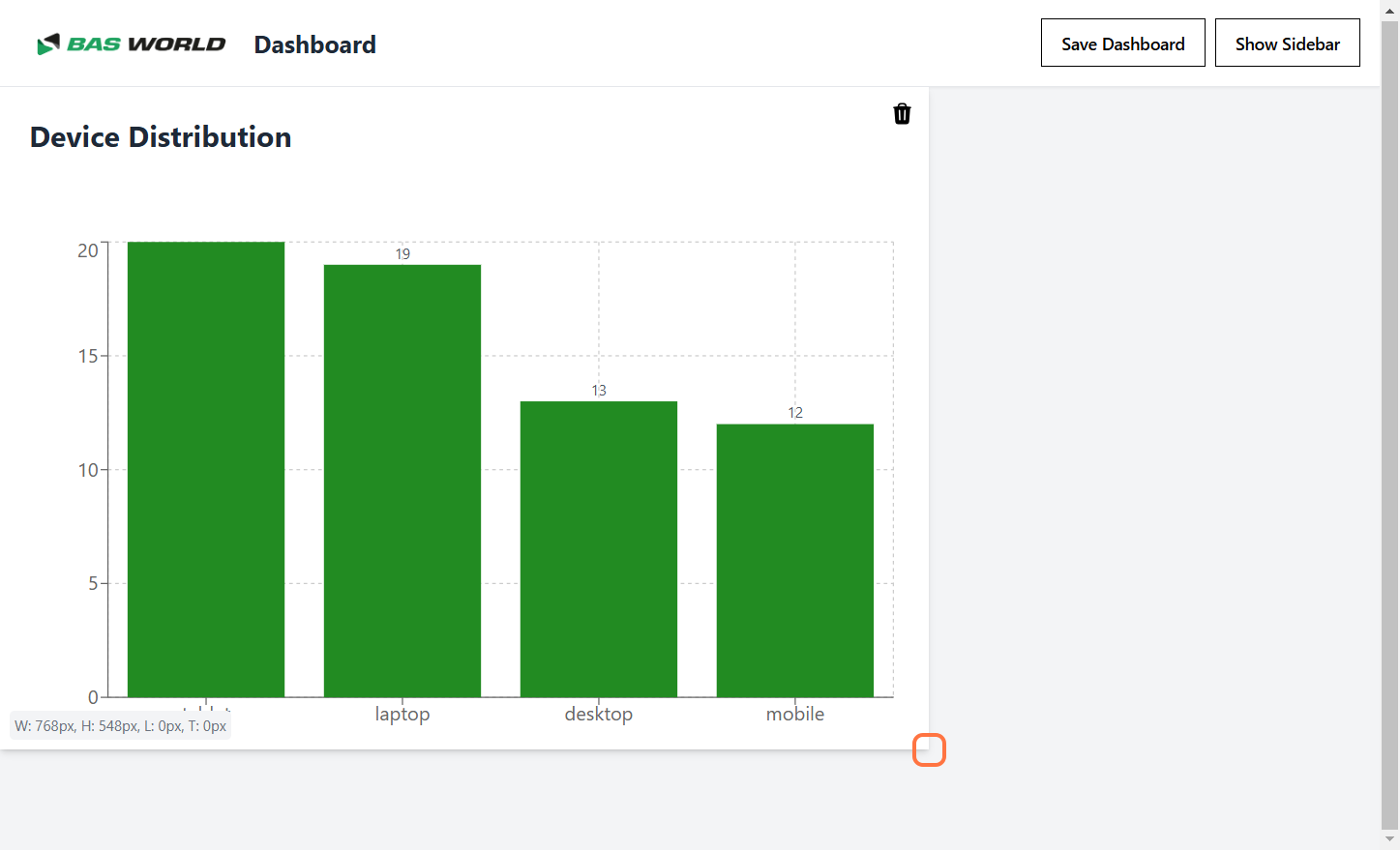
Step 3: Preview the Resized Widget
As you drag, the widget dynamically resizes. You can see a live preview of the new dimensions.
Step 4: Confirm Resizing
Once the widget is resized to your liking, release the mouse to apply the new size.
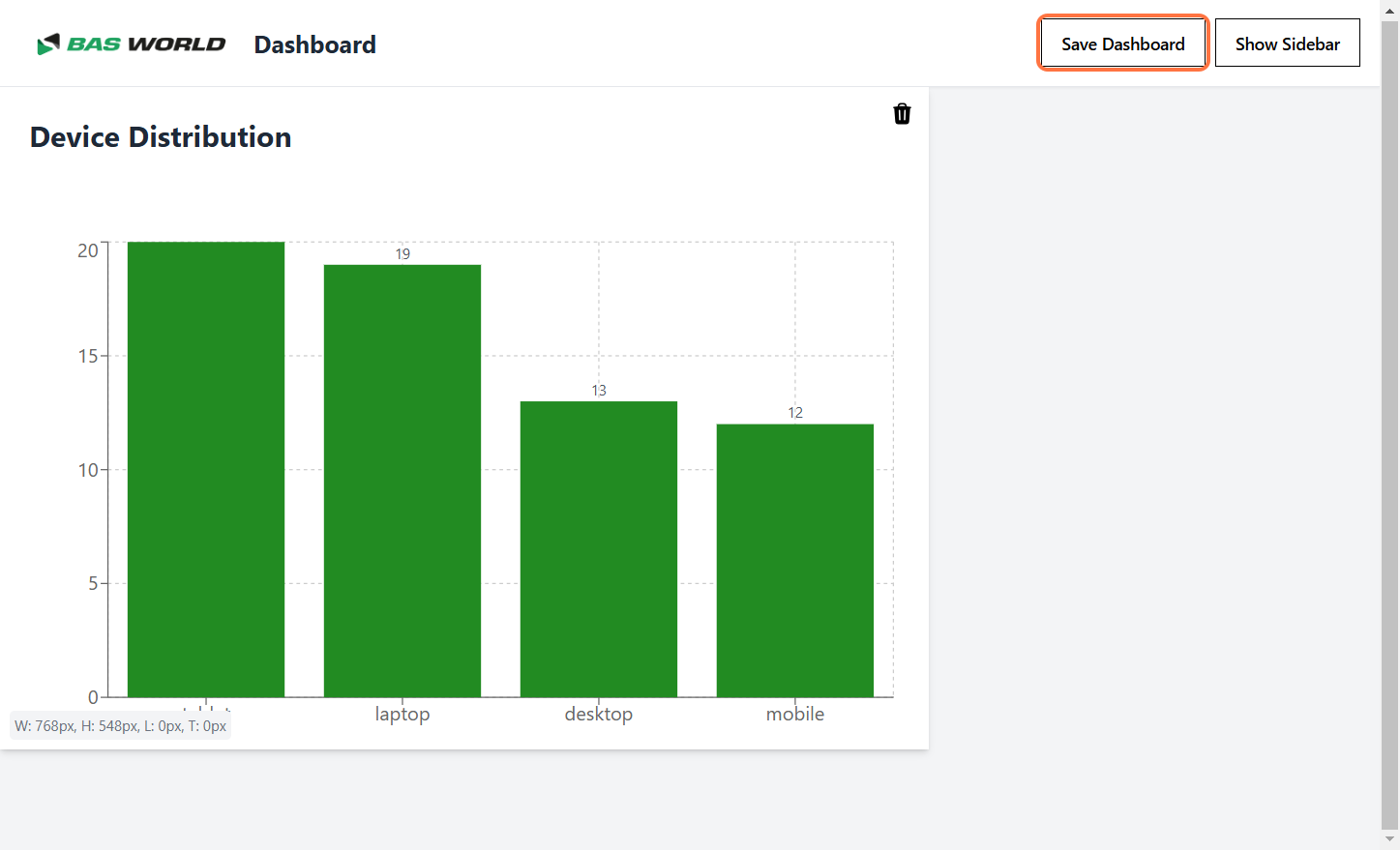
Step 5: Save the Dashboard Layout
Click the "Save Dashboard" button to save your changes. Your resized widget will now remain in the updated layout.
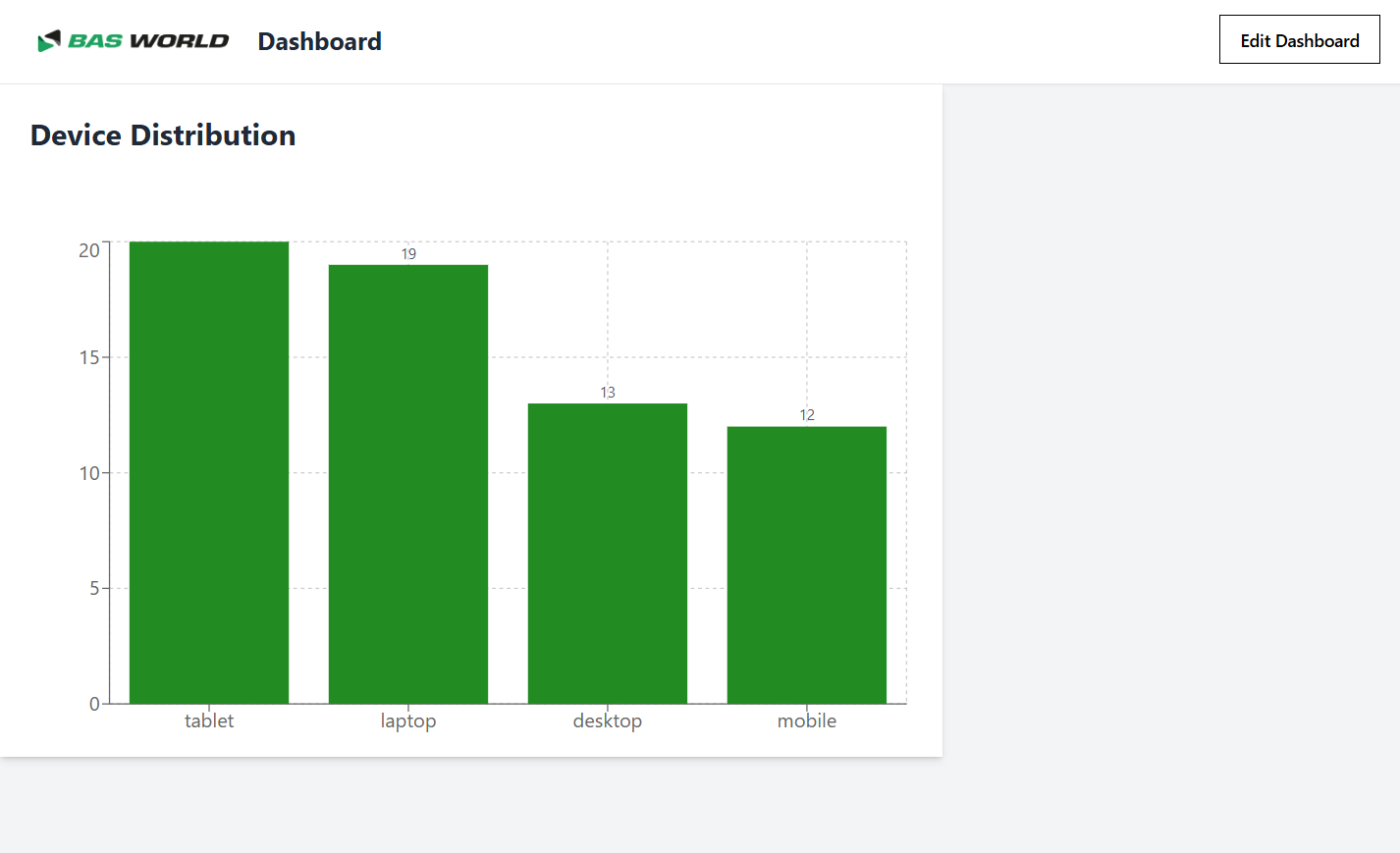
By following these steps, you can easily customize the size of widgets on your dashboard to better suit your visualization needs.