Adding Widgets to the Dashboard
Follow these simple steps to add a widget to your dashboard:
Step 1: Enable Edit Mode
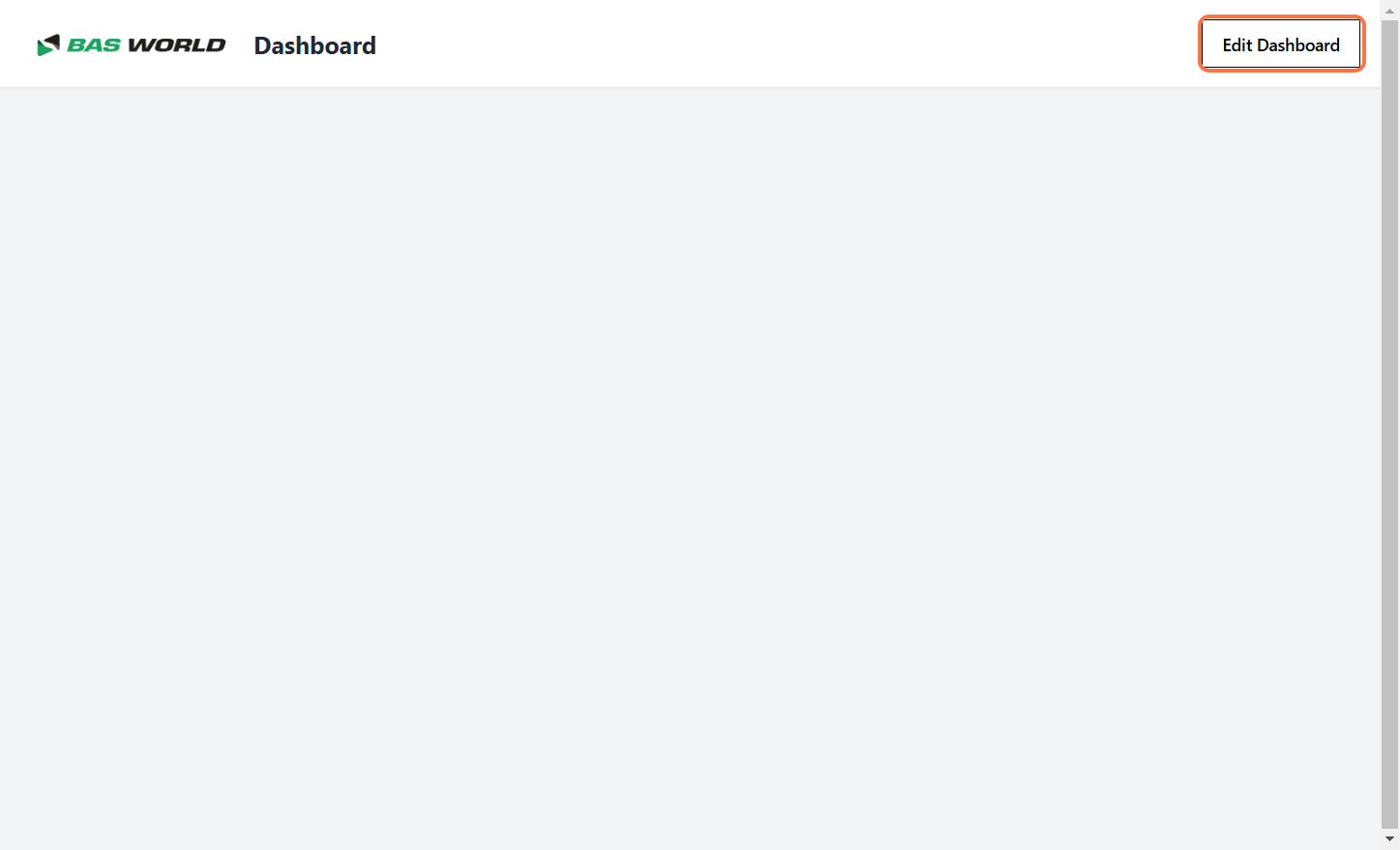
Click the "Edit Dashboard" button to turn on edit mode.
Step 2: Open the Sidebar
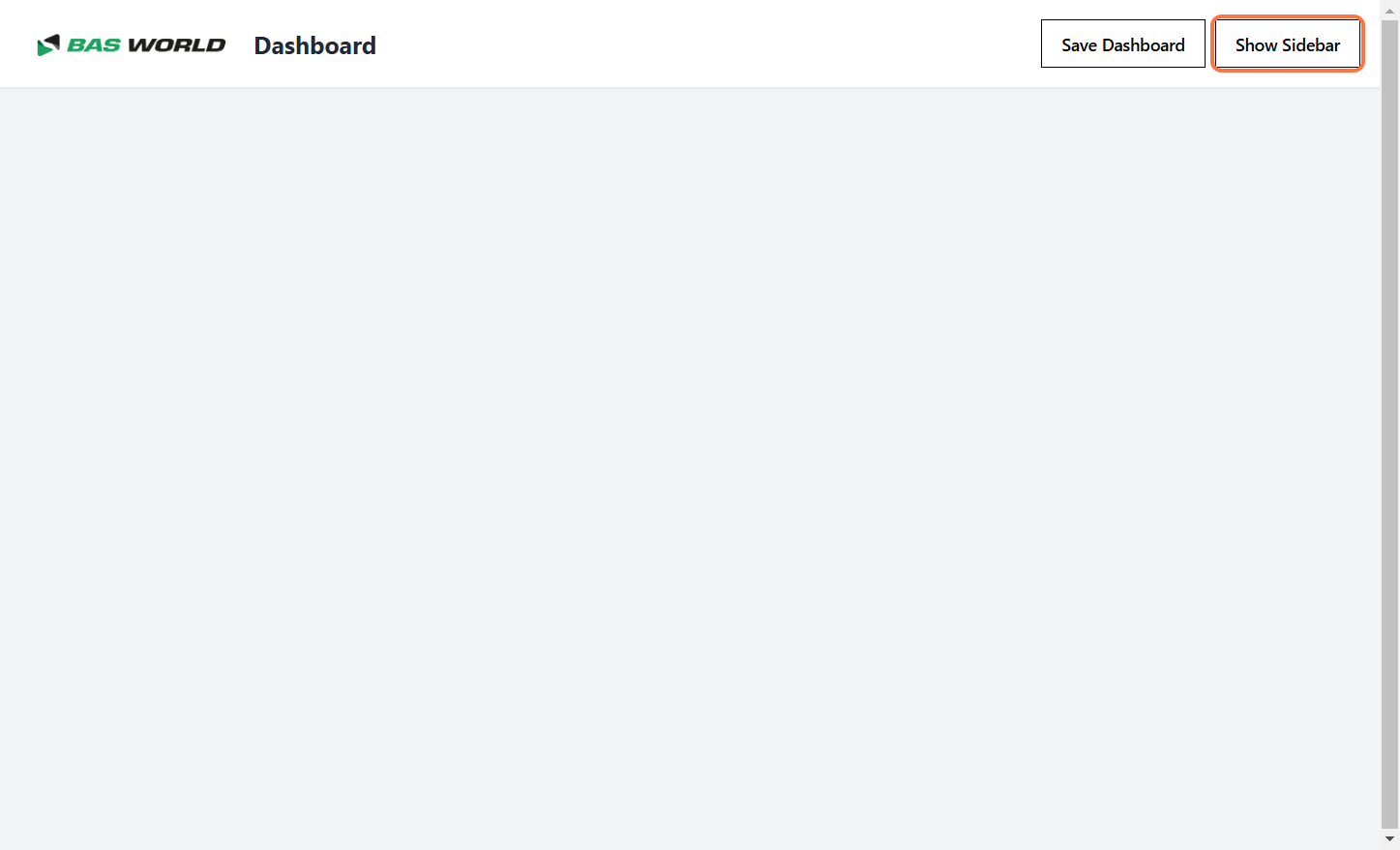
Click the "Show Sidebar" button to display the widget options.
Step 3: Choose a Widget Category
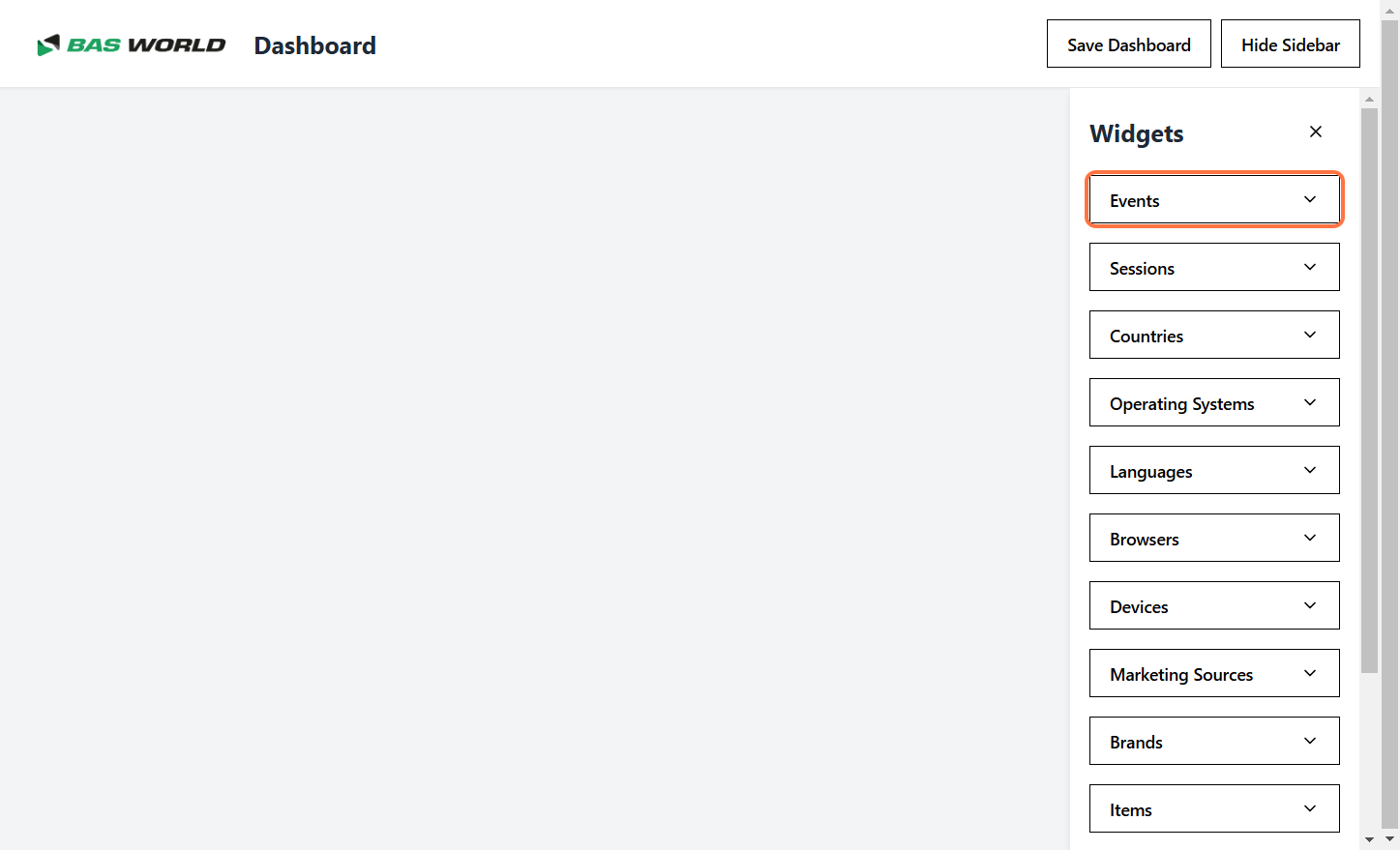
Select the category that matches the type of widget you want to add.
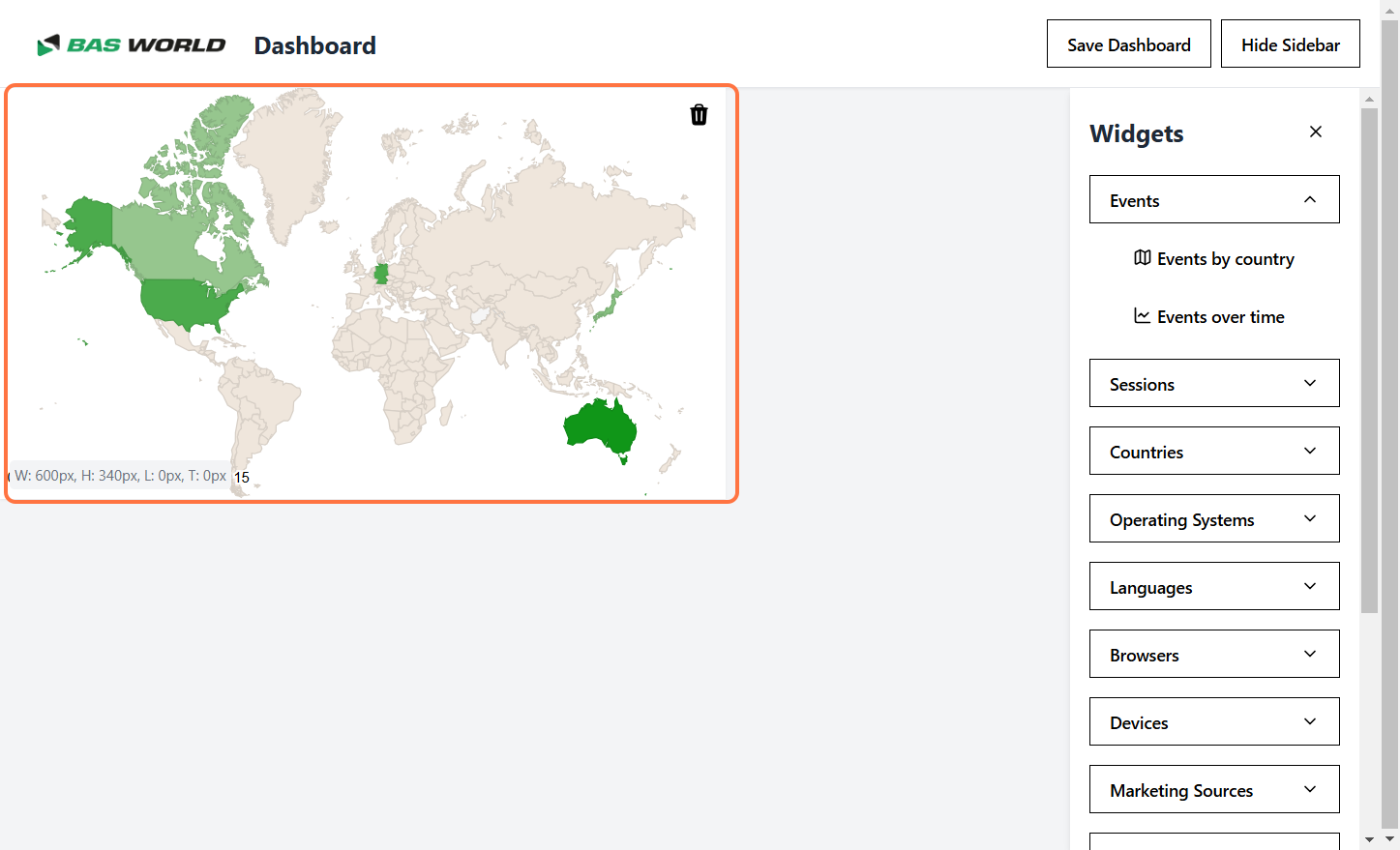
Example: The "Events" category is selected in this case.
Step 4: Add Your Widget
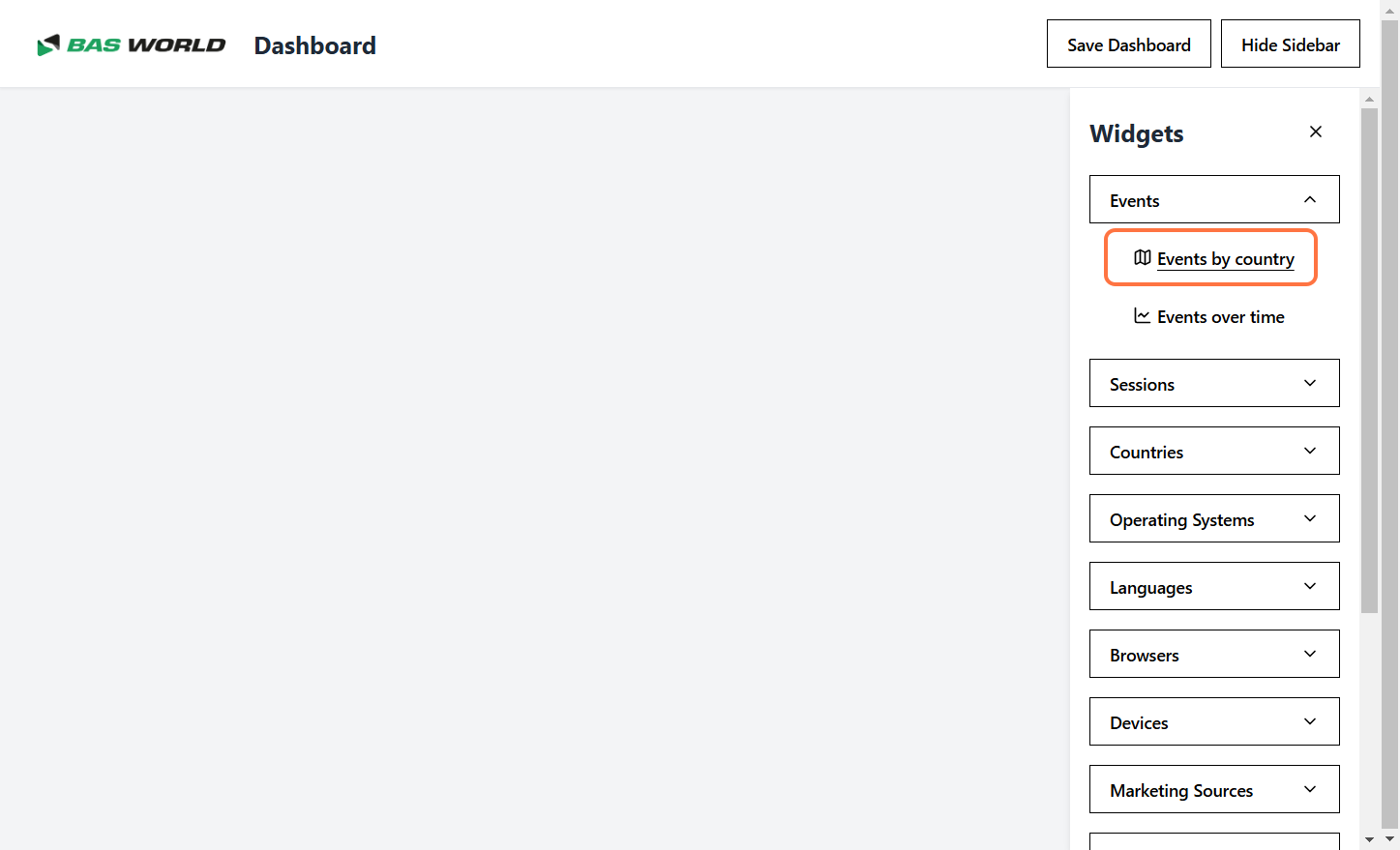
Click on the widget you want to add from the available options.
Step 5: Widget Placement
The selected widget will be placed in the first available space on the canvas.
Step 6: Save Your Layout
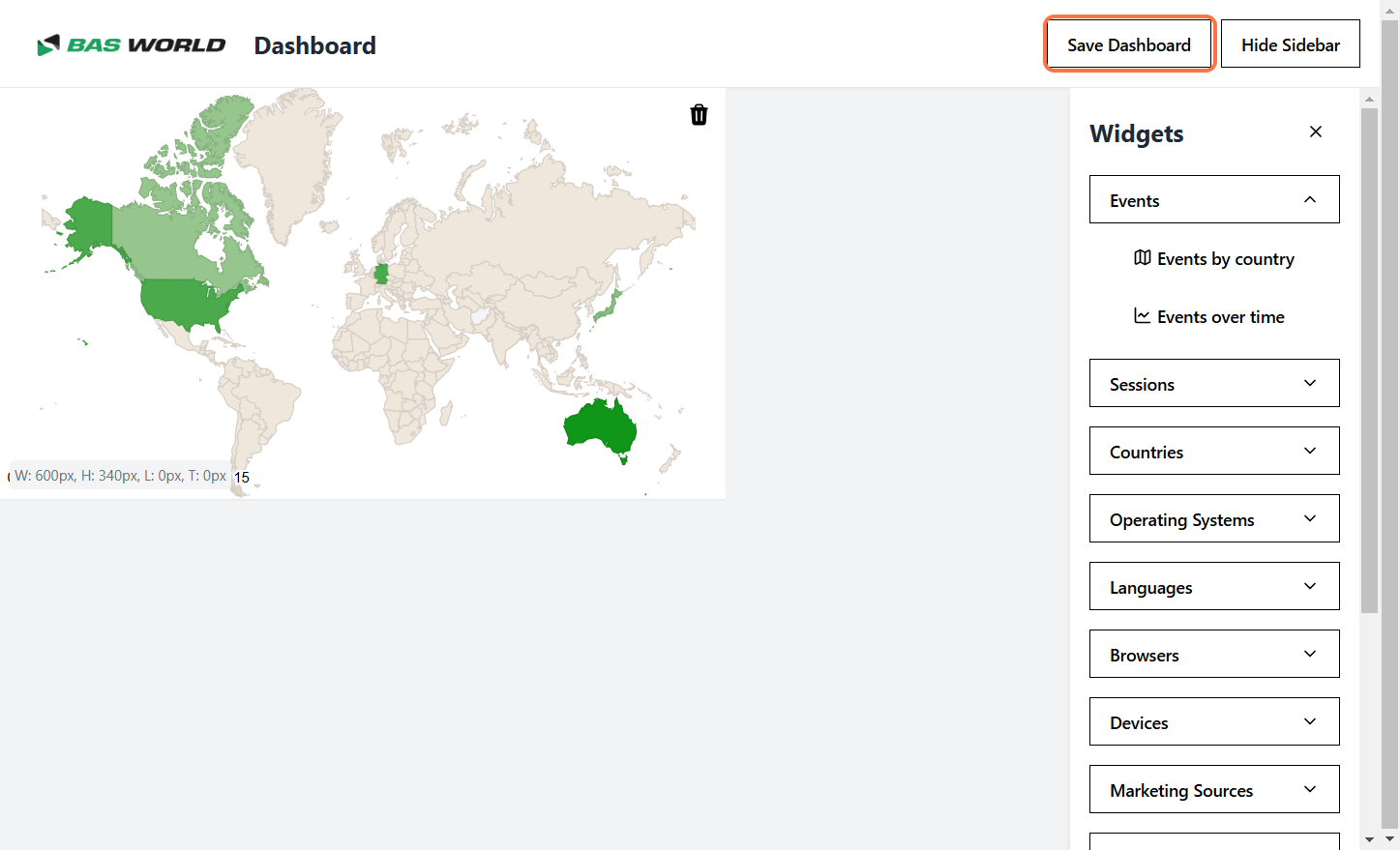
Click "Save" to lock in your changes. The layout is now fixed until you re-enter edit mode.
Step 7: View Your Updated Dashboard
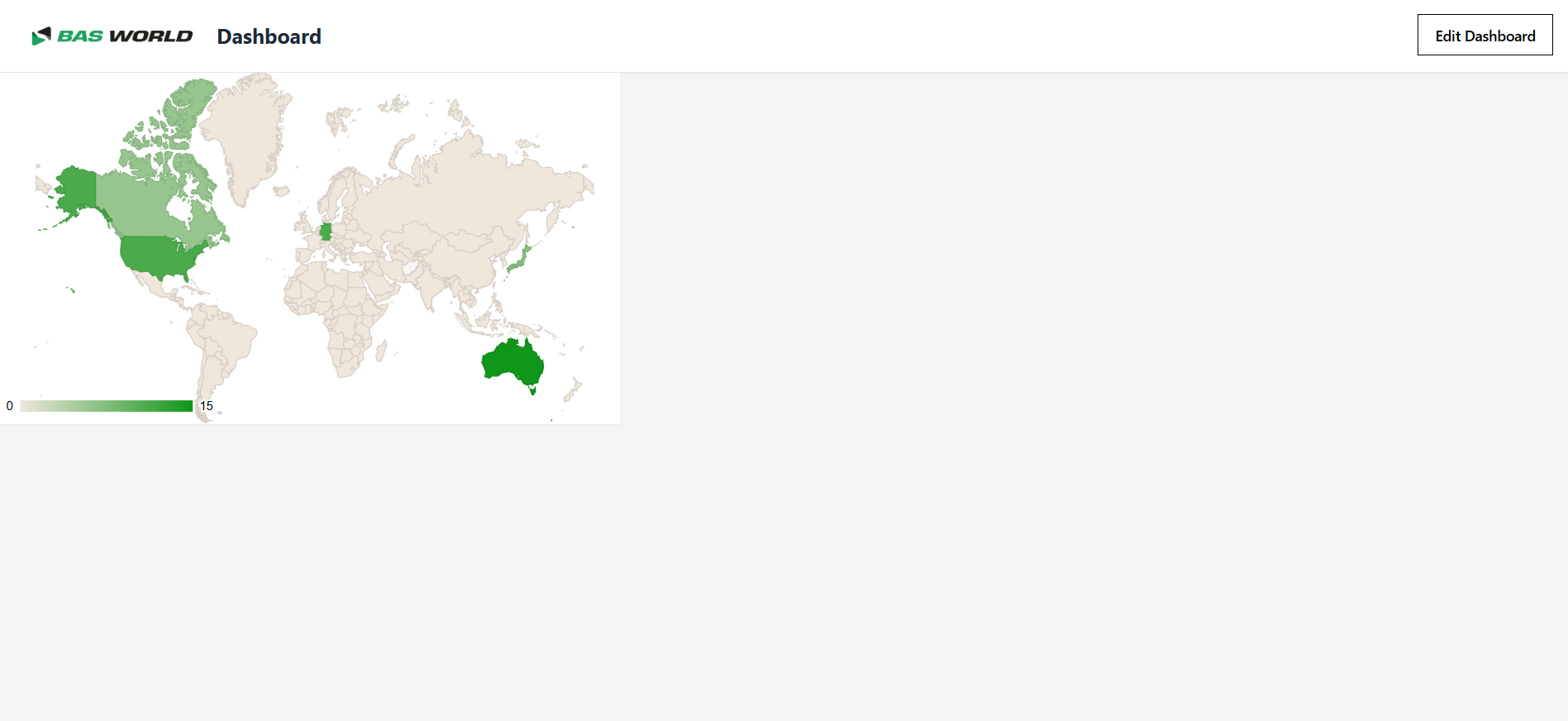
Your dashboard now includes the new widget!
By following these steps, you can easily customize your dashboard and make it more functional and tailored to your needs.