How to Save Layouts
Overview
Saving your layout is essential to preserve your custom dashboard settings. Once saved, you can share your personalized view with others using a unique URL. This guide explains how to save your layout and the benefits of doing so.
Steps to Save Your Layout
- Enter Edit Mode
- To save a layout, ensure you are in Edit Mode. Edit Mode allows you to customize and rearrange your dashboard widgets.
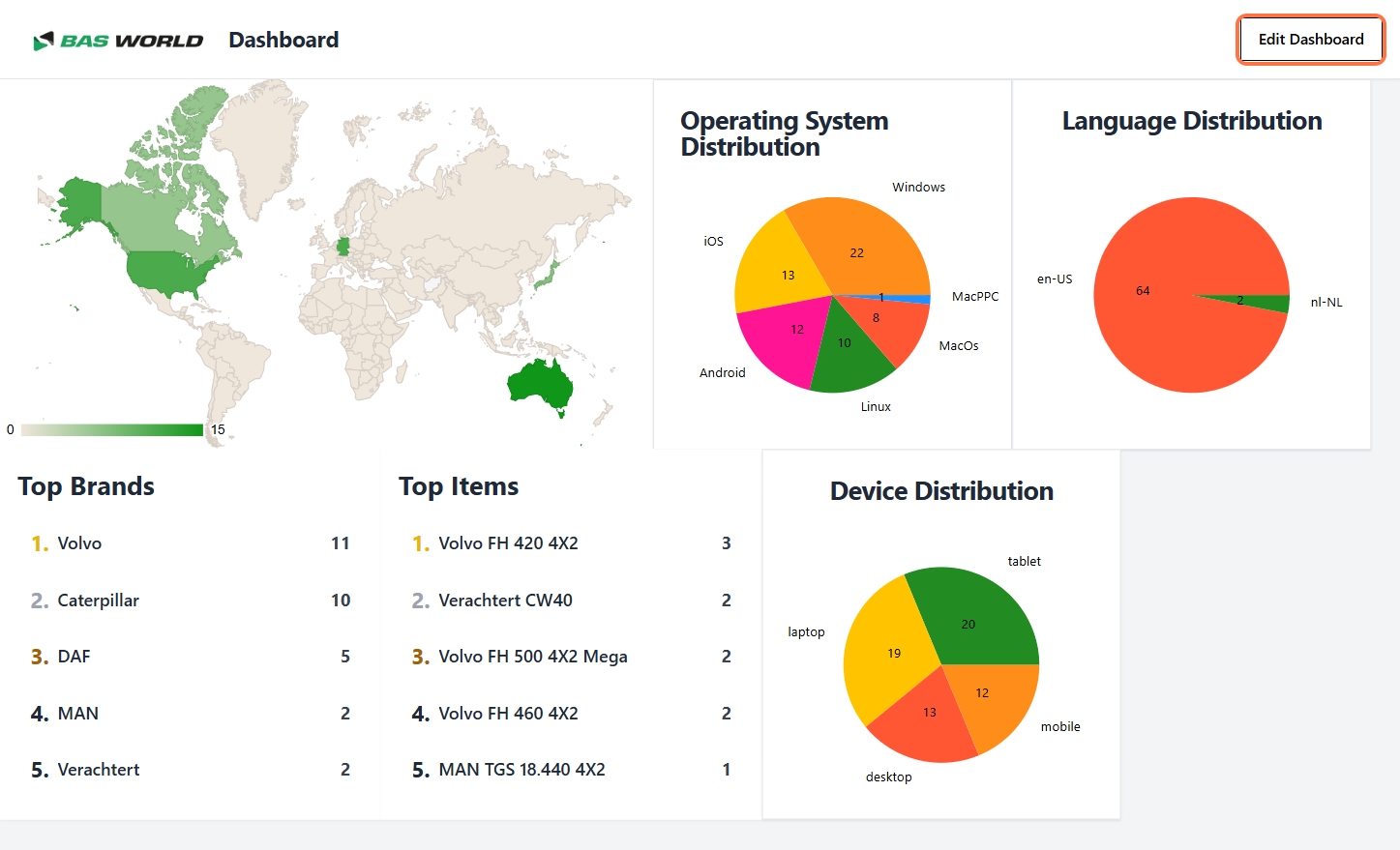
- Click "Save Layout"
- Locate the "Save Layout" button on the top navigation bar of the dashboard.
- Click the button to initiate the saving process.
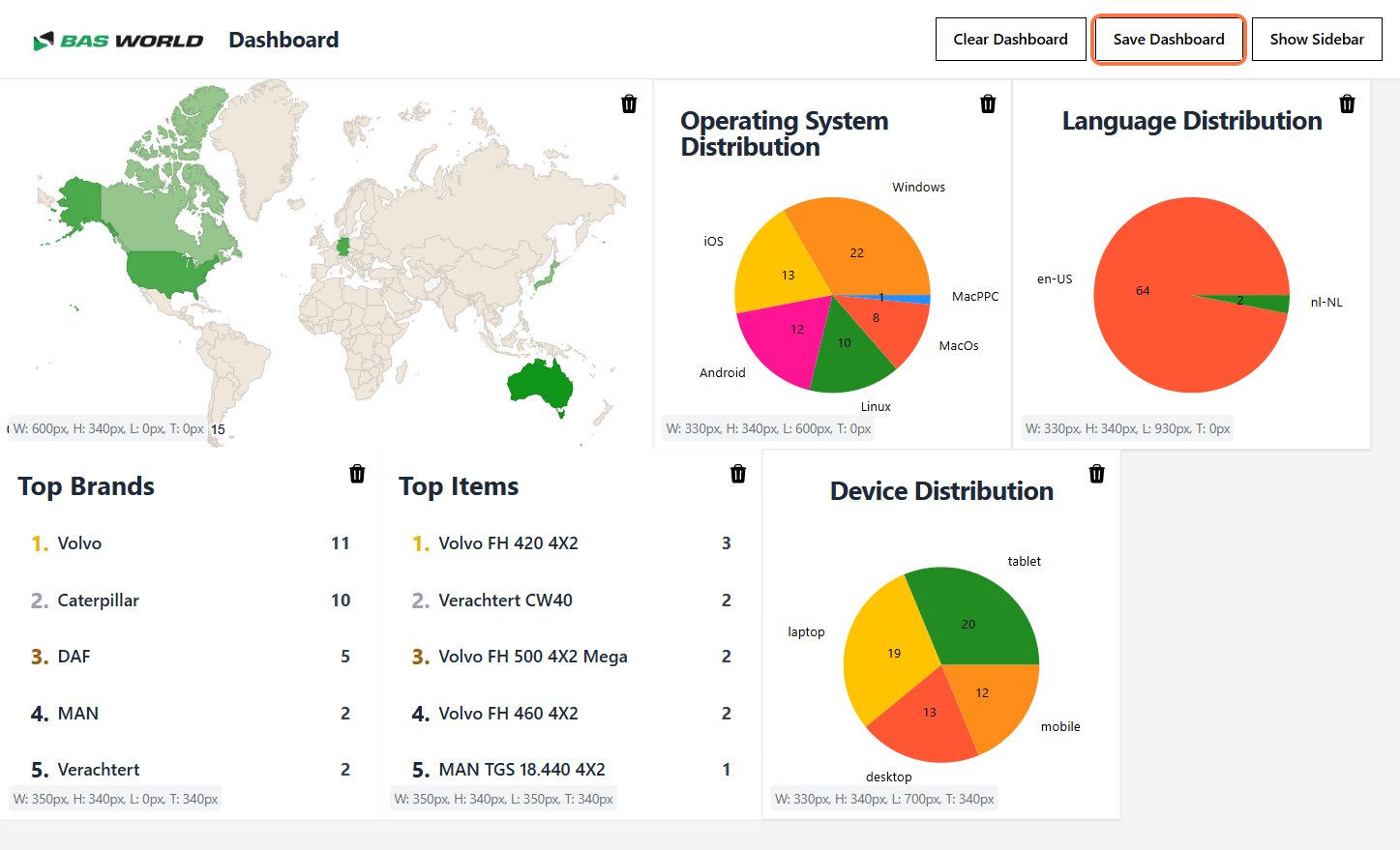
-
Receive a Unique URL
- After clicking the "Save Layout" button, the system will generate a unique URL corresponding to your saved layout.
- Use this link to revisit your layout or share it with others.

Features of Saved Layouts
-
Preservation of Customization
- Save your widget arrangement, color themes, and other personalized settings.
-
Easily Shareable
- Share the unique URL with colleagues or team members to showcase your customized dashboard.
-
Access from Anywhere
- Revisit your saved layout from any device by simply opening the generated link.
-
Collaboration Made Easy
- Collaborate effectively by sharing consistent dashboard views with your team.